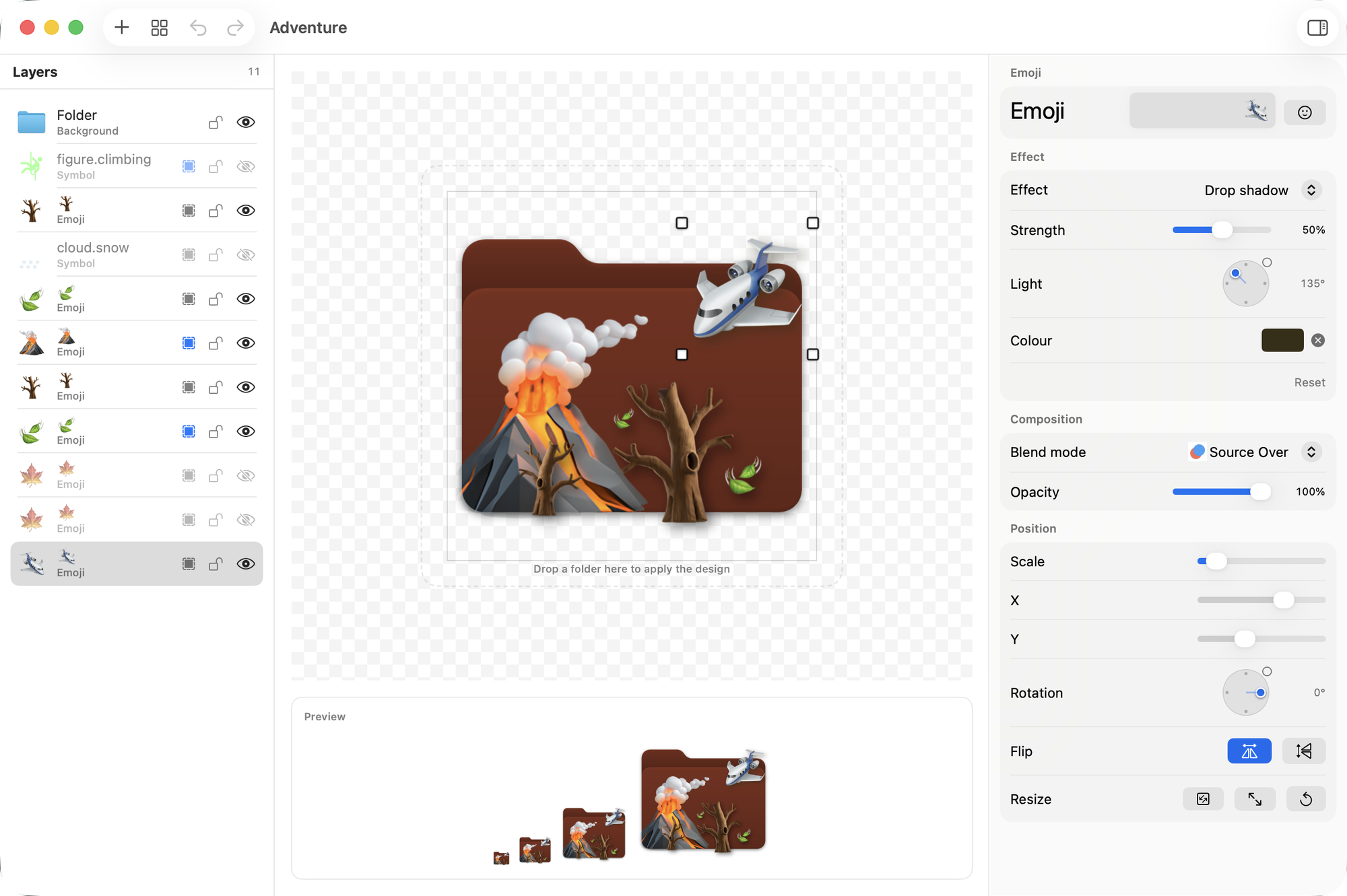
Build an icon in layers
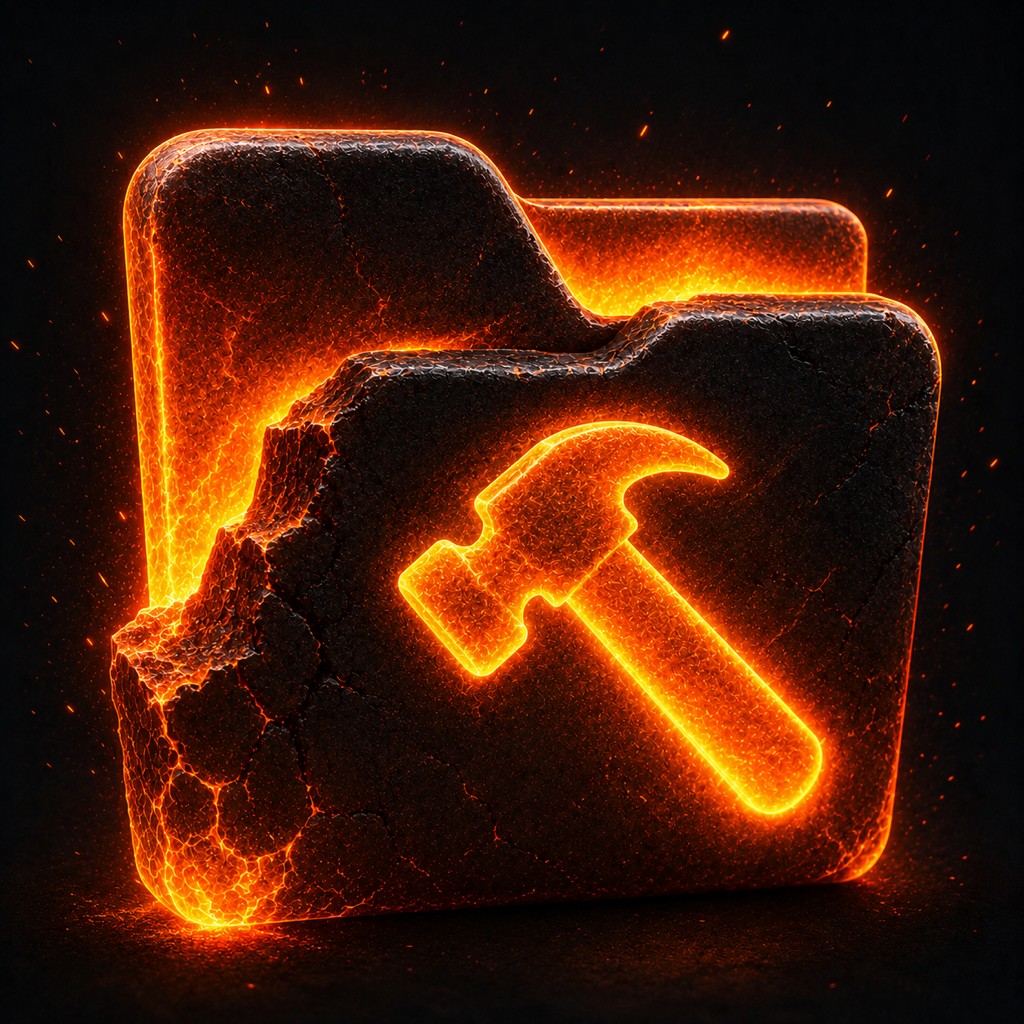
Start with the macOS folder in any colour or gradient, or on a textured background like Hot Metal or Ice, then stack what you need on top. Each layer has its own blend mode, opacity and effect, and can be clipped to the folder’s shape.
- Symbols
- Thousands of SF Symbols in a solid colour or a gradient, drawn flat or two-tone.
- Emoji and Genmoji
- Any emoji, or a Genmoji or Memoji from the Emoji & Symbols picker.
- Text
- A year, a client, a project code. Nine weights, in a default, serif, rounded or monospaced design.
- Photos
- Pick one from your Photos library without leaving the editor, drop an image file on the canvas, or paste one from the clipboard.
- AI images
- Make a picture with Image Playground, or describe it to a cloud engine with your own key.
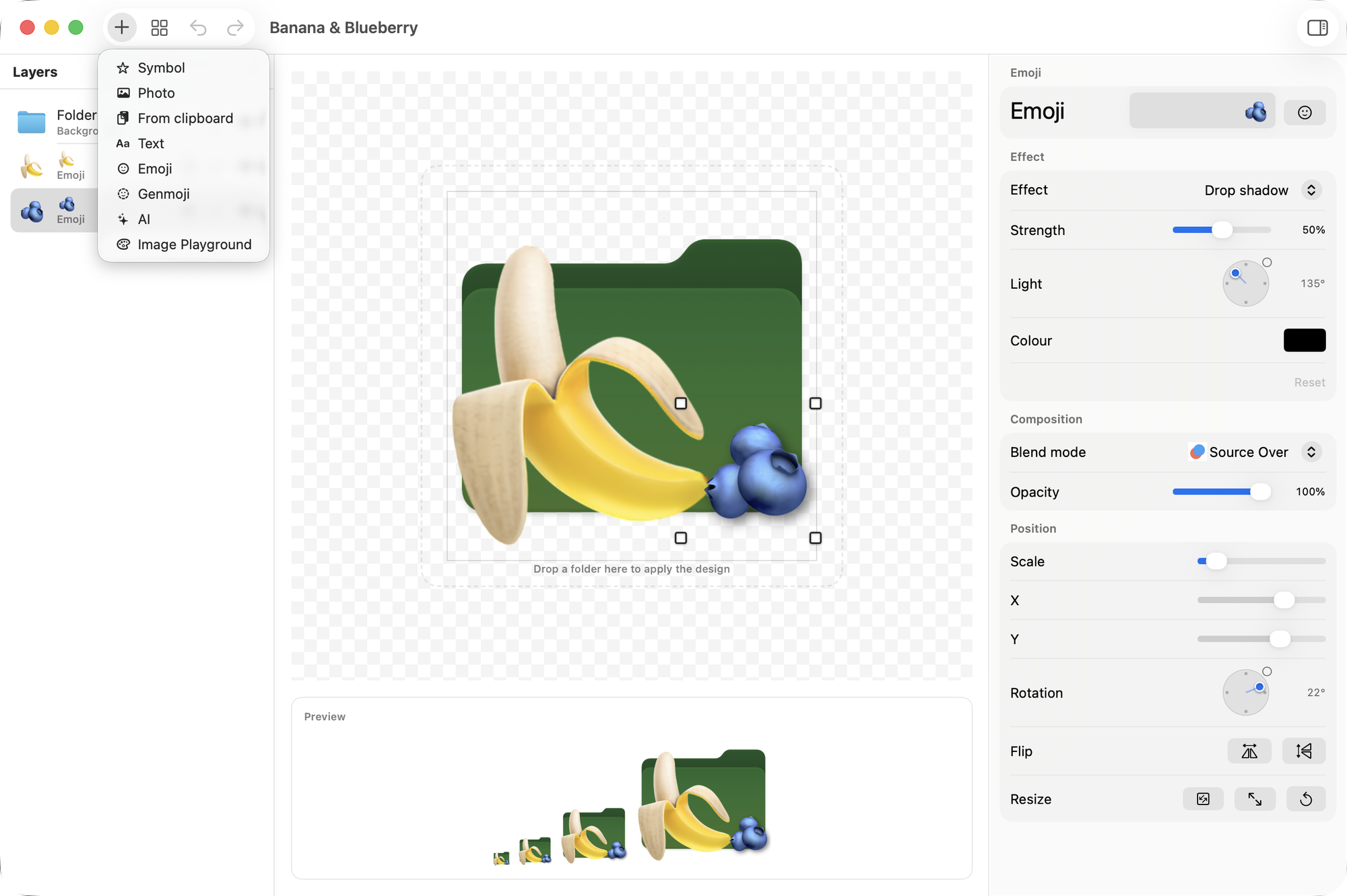
Put your own photos on a folder
Add a picture from your Photos library or an image file, clip it to the folder’s shape and choose how it blends in. Lay a symbol or an emoji on top, and give it an effect like any other layer.
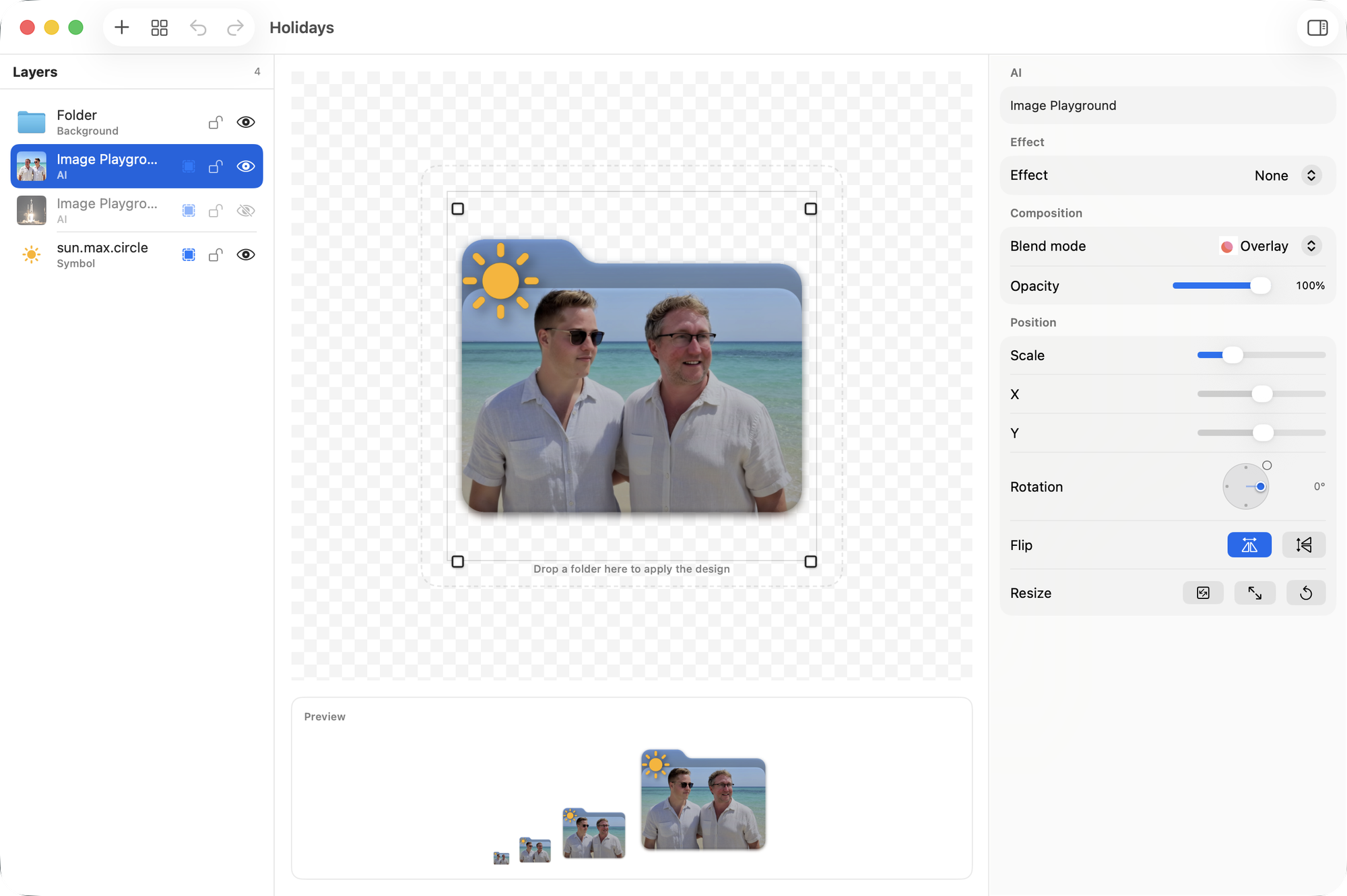
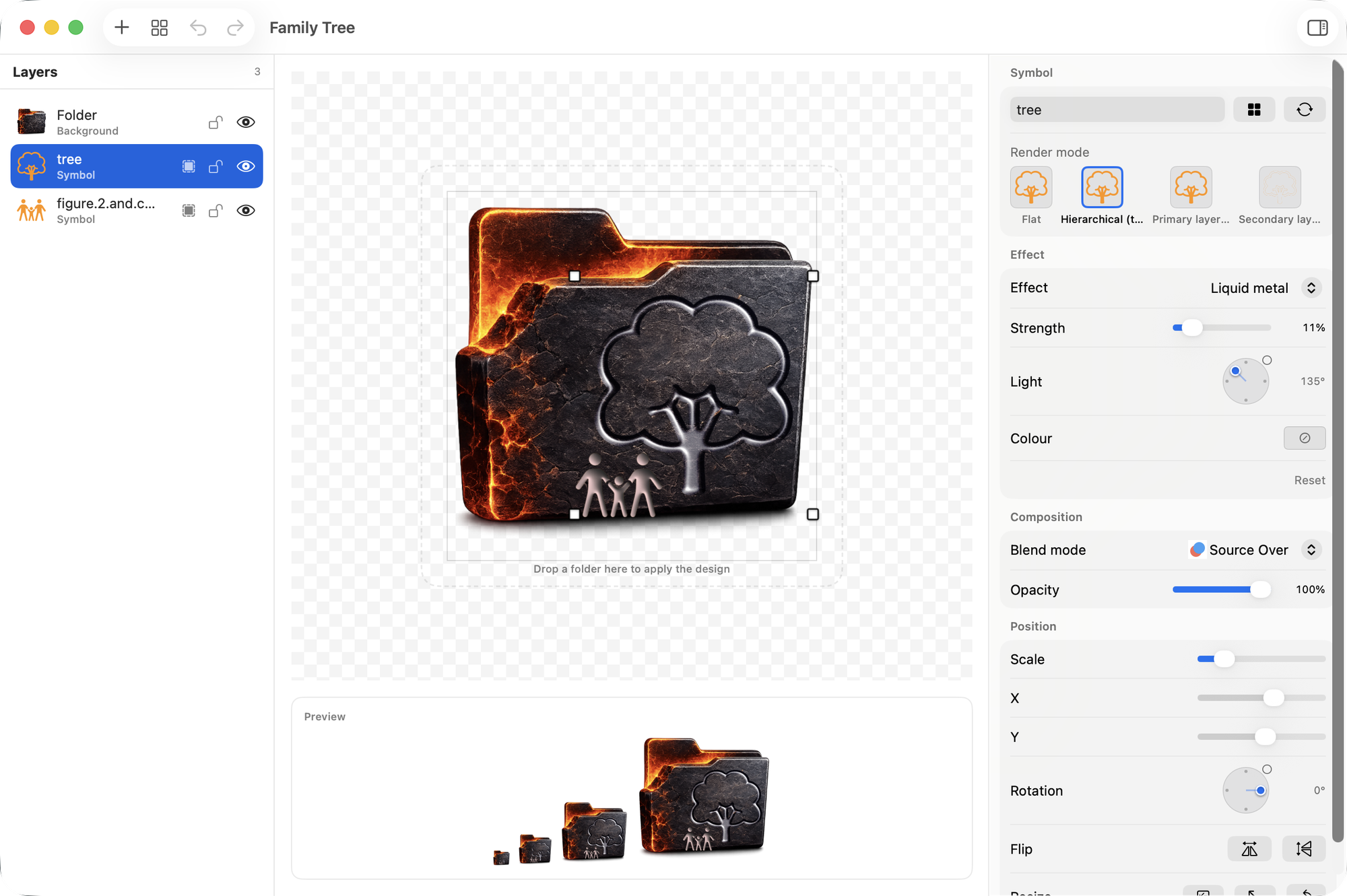
Eleven effects, from deboss to liquid metal
Every effect has a strength slider, and most add a light direction and a colour. Effects never flatten a layer, so you can change them later in any saved design.
- Deboss
- Emboss
- Drop shadow
- Inner shadow
- Outer glow
- Pixelate
- Long shadow
- Bevel
- Sticker
- Liquid metal
- Frosted glass
Generate artwork on your Mac, or with your own key
Say what should be on the folder and the picture lands in a layer, ready for blend modes and effects like anything else.
On your Mac
- Image Playground, built into macOS
Needs a Mac with Apple Intelligence turned on. No account and no key.
In the cloud, with your key
- OpenAI
- Stability AI
- xAI Grok
- Pollinations
Optional. Paste an API key in Settings, where it is kept in your Mac’s Keychain, and you pay the provider directly. No Foldersmith account involved.
From the canvas to Finder
-
Design it
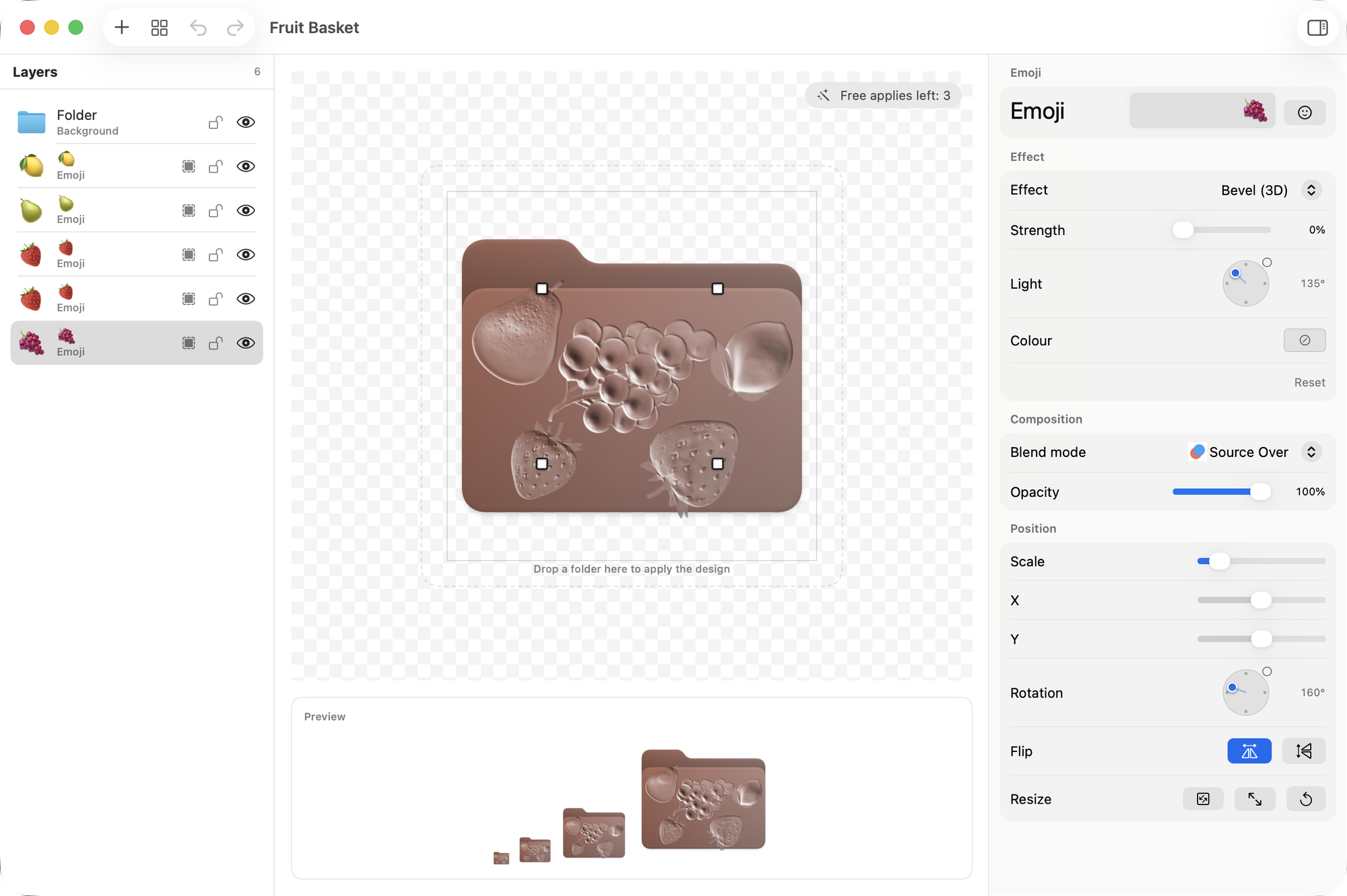
The preview strip shows your icon at 16, 32, 64 and 128 points, so you catch a detail that vanishes at the smallest size before you apply.
-
Keep it
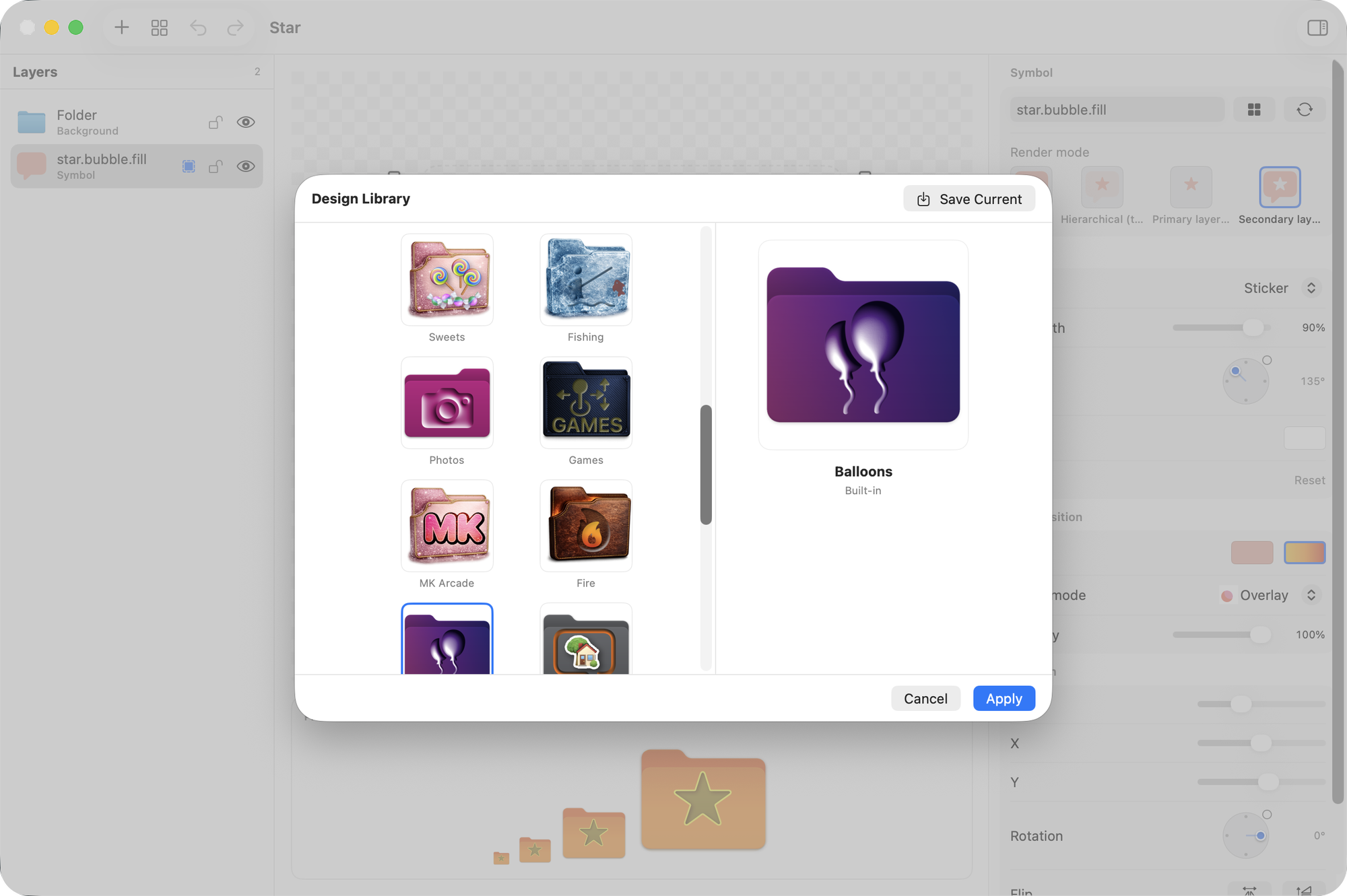
Save designs to your library and start the next folder from one of them or a built-in design. Or save a design as a file to share with a friend.
-
Drop a folder on it
Drag any folder from Finder onto the canvas. The icon is applied, and your design stays open for the next one.
Try everything. Pay once if you keep it.
Free
Every layer type, every effect and every AI engine, with three free applies to your folders.
Download freeFoldersmith Unlimited
- Apply designs to as many folders as you like
- Export your icons as PNG images
- Shared with your family through Family Sharing
- One purchase, no subscription
Unlock Unlimited from inside the app, and restore it on any Mac signed in to the same Apple Account.
Questions
Which Macs can run Foldersmith?
Any Mac on macOS 26 Tahoe. Generating images with Image Playground needs a Mac with Apple Intelligence turned on.
What counts as one of the three free applies?
Each time a design is written to a folder, including putting a new design on a folder you’ve already done. If an apply fails, you get it back. Designing, previewing, saving and removing icons are always free.
Do custom icons sync through iCloud Drive?
No. macOS keeps a custom folder icon on the Mac where it was applied, and iCloud Drive doesn’t upload it. Save the design, open it on your other Mac and apply it there.
How do I go back to the standard folder icon?
Drop the folder on the preview area in Foldersmith and it gets the standard icon back. It works on any folder, every time, and never needs a purchase.
Do I need an account for the AI features?
No. Image Playground is built into macOS and needs no account. The cloud engines are optional and use an API key from the provider.
Which languages does it speak?
30 languages, including English, German, French, Spanish, Japanese, Chinese, Korean, Arabic, Hebrew, Hindi and Polish.